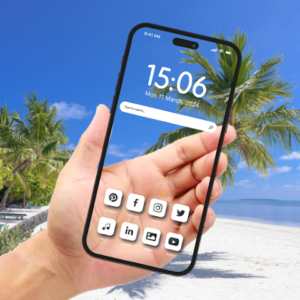

Want your phone to look like a piece of futuristic glass? A transparent wallpaper creates a cool see-through effect that makes your home screen feel modern and minimalist. In 2026, this trend is more popular than ever thanks to better cameras, new iOS features, and easy apps.
Whether you have an Android phone or the latest iPhone, setting up a transparent wallpaper is simple. This complete guide covers everything — from basic steps to pro tips, troubleshooting, and creative ideas. By the end, your phone will have that sleek, high-tech look everyone loves.
What Is a Transparent Phone Wallpaper?
A transparent wallpaper makes parts of your home screen appear see-through. On Android, it usually uses your phone’s camera to show the real world behind the device in real time. On iPhone with iOS 26, the new “Clear” mode gives app icons and widgets a glassy, translucent look that blends beautifully with any wallpaper.
This effect is perfect for minimalists, tech enthusiasts, and anyone who wants a unique home screen. It works great for showing off your phone’s design or creating fun optical illusions.
Why Transparent Wallpapers Are Trending in 2026
- Modern Aesthetic: Gives a premium glass-like feel.
- Easy Customization: No complicated editing needed.
- Fun Factor: Impress friends with the see-through trick.
- Battery & Performance: Newer phones handle live effects smoothly.
- Versatile: Works with light, dark, or colorful themes.
People love this look because it feels fresh compared to traditional static wallpapers.
How to Set Transparent Wallpaper on Android in 2026
Android phones support live wallpapers that use the camera for a true transparent effect. Here’s the easiest method:
Step-by-Step Guide:
- Open the Google Play Store on your Android phone.
- Search for “Transparent Live Wallpaper” or “Transparent Wallpaper”.
- Choose a highly-rated app (look for 4+ stars and millions of downloads). Popular options include Transparent Wallpaper, Transparent Screen & Live Wallpaper.
- Install the app and open it.
- Grant necessary permissions — mainly Camera access (this is required for the live see-through effect). Storage permission may also be asked.
- Select Rear Camera for the see-through effect or Front Camera for a mirror look.
- Preview the live feed on your screen.
- Tap Set Live Wallpaper or Apply.
- Choose to set it on Home Screen, Lock Screen, or both.
- Confirm and enjoy your transparent phone!
The home screen will now show whatever is behind your phone in real time, creating a magical glass illusion.
Pro Tip: Test in bright lighting for the best camera quality. Some apps let you adjust brightness, contrast, or add filters.
Best Transparent Wallpaper Apps for Android (2026)
- Transparent Wallpaper by popular developers — Simple and reliable.
- Transparent Screen & Live Wallpaper — Offers extra effects and parallax.
- Transparent Live Wallpaper 4K — High-quality visuals with many themes.
Always download from Google Play Store for safety and regular updates.
How to Set Transparent / Clear Wallpaper on iPhone (iOS 26)
Apple introduced a built-in Clear mode in iOS 26 that makes app icons and widgets translucent without needing extra apps.
Step-by-Step Guide:
- Go to your Home Screen.
- Long-press on an empty area until the icons start jiggling (edit mode).
- Tap Edit in the top-left corner.
- Select Customize from the menu.
- Choose Clear from the style options at the bottom.
- Pick Light, Dark, or Auto mode. Light mode usually gives the strongest transparent effect.
- Tap Done to apply the changes.
Your app icons will now have a beautiful glass-like transparency that blends with the wallpaper underneath.
Extra Customization: You can also adjust tint and transparency levels in the same menu for a more personalized look.
How to Reduce or Adjust Transparency on iPhone
If the Clear mode feels too blurry:
- Open Settings app.
- Go to Accessibility > Display & Text Size.
- Turn on Reduce Transparency to make elements clearer.
- Optionally enable Increase Contrast for better readability.
This helps if you find the glass effect hard to read in daily use.
Creative Ideas for Transparent Wallpapers
- Minimal Setup: Use a plain light or dark background with Clear mode on iPhone.
- Live Camera Fun: On Android, point your phone at interesting backgrounds like nature or city views.
- Transparent Widgets: Add widgets with transparent backgrounds to complete the look.
- Themed Looks: Combine with glass-style icons or neon effects.
- Lock Screen Matching: Set the same transparent style on your lock screen for consistency.
Experiment with different camera angles and lighting for unique effects.
Pros and Cons of Transparent Wallpapers
Pros:
- Gives a premium, modern appearance.
- Easy to set up and change.
- Fun and interactive (especially live camera).
- Great for showing off phone hardware.
- Works well with most themes.
Cons:
- Live camera on Android can drain battery faster.
- May reduce readability in bright sunlight.
- Some apps show ads (choose wisely).
- iPhone Clear mode might need adjustments for comfort.
- Not ideal for privacy if using camera live feed in public.
Troubleshooting Common Issues
- Effect Not Working: Restart your phone and check permissions.
- Battery Draining: Limit live wallpaper use or switch to static transparent PNG images.
- Blurry Icons: Adjust transparency settings or reduce blur in Accessibility.
- App Not Available: Search alternative names like “Live Camera Wallpaper”.
- Compatibility: Works best on newer phones with good cameras and latest OS.
Practical Tips for Best Results in 2026
- Use your phone in good lighting for camera-based effects.
- Combine with transparent or minimal widgets.
- Set different wallpapers for home and lock screens.
- Update your phone’s software regularly for better performance.
- Try the effect with friends — it’s a great conversation starter!
- For static transparent looks, download high-quality PNG images with transparent backgrounds from trusted sites.
Safety and Privacy Advice
Always use official app stores. Camera-based wallpapers need permission, so only grant it to trusted apps. You can revoke camera access anytime in phone settings. This keeps your data safe while enjoying the cool effect.
FAQs About Transparent Phone Wallpapers
1. Does transparent wallpaper work on all phones? It works on most Android phones and all iPhones running iOS 26 or later. Older devices may have limited support.
2. Will it drain my battery quickly? Live camera wallpapers on Android use more power. iOS Clear mode is more battery-friendly.
3. Can I set it on both home and lock screen? Yes, most apps and iOS settings allow you to choose.
4. Is there a way without downloading apps? On iPhone iOS 26, yes — use built-in Clear mode. On Android, an app is usually needed for the full live effect.
5. How do I remove the transparent wallpaper? Go to your phone’s wallpaper settings and choose a normal static image.
Conclusion
Setting a transparent phone wallpaper in 2026 is easier and more impressive than ever. Whether you prefer the live see-through magic on Android or the elegant Clear glass look on iPhone, you can transform your home screen in just a few minutes.
Try the steps today and give your phone a fresh, futuristic style. Play with different modes, lighting, and widgets to make it truly yours. Your friends will definitely ask how you did it!
Which phone do you have — Android or iPhone? Try the transparent wallpaper and share your results in the comments below. Happy customizing! 📱✨