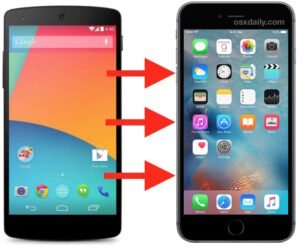

Switching from Android to iPhone can feel exciting but also a bit scary. The biggest worry is losing important data like photos, contacts, messages, and apps.
The good news? There are simple and safe Android to iPhone convert apps that make the switch smooth. In this easy guide, you will learn everything about the best tools, step-by-step methods, and useful tips to transfer your data without stress.
Why People Switch from Android to iPhone
Many users move to iPhone for better privacy, smooth performance, long software updates, and the excellent camera.
Whether you want the latest iPhone 17 series or just love the iOS experience, transferring data properly is very important. A good Android to iPhone convert app helps you move everything safely so you don’t lose memories or important information.
What Data Can You Transfer from Android to iPhone?
- Contacts and call history
- Photos and videos
- Messages and SMS
- WhatsApp chats and media
- Calendars and emails
- Bookmarks and some app data
- Music and documents (limited)
Note: Not all apps transfer perfectly. Some data like certain app settings may need manual setup.
Best Official Android to iPhone Convert App: Move to iOS
Move to iOS is Apple’s own free app. It is the easiest and safest way for most people.
Key Features:
- Completely free
- Transfers most important data
- Secure and direct connection
- Supports WhatsApp content
How to Use Move to iOS App (Step-by-Step)
- Turn on your new iPhone and follow the setup until you see “Apps & Data” screen.
- Tap Move Data from Android.
- On your Android phone, go to Google Play Store and download Move to iOS.
- Open the app, agree to terms, and enter the code shown on your iPhone.
- Select the data you want to transfer.
- Keep both phones near each other and connected to power until finished.
- Once complete, finish setting up your iPhone.
This process usually takes 10 minutes to over an hour depending on data size.
Tips for Best Results:
- Charge both phones fully.
- Use strong Wi-Fi.
- Update both devices before starting.
- Keep phones close (within 1 meter).
Best Third-Party Android to iPhone Convert Apps
If you have already set up your iPhone or want more options, try these trusted apps:
1. MobileTrans (Wondershare)
- Very popular in 2026.
- Transfers WhatsApp, photos, contacts, music, and more.
- Works with QR code (no cable needed).
- Fast and user-friendly for both Android and iPhone.
2. iReaShare Phone Transfer
- Good for large data transfers.
- Uses wired connection for stability.
- Safe for big photo and video libraries.
3. Acronis Mobile
- Focuses on security and backup.
- Great if you want cloud protection too.
4. Send Anywhere or Zapya
- Best for quick file sharing (photos, videos, documents).
- Not for full phone transfer but very fast for selected files.
These apps are available on Google Play Store and Apple App Store. Always choose highly rated ones with millions of downloads.
How to Transfer Data Without Resetting iPhone
Many people search for methods after iPhone setup. Here are safe options:
- Use MobileTrans or iReaShare on computer (connect both phones via cable).
- Transfer photos and videos using Google Photos or Google Drive.
- Manually sync contacts via Google account.
- Use WhatsApp’s own backup and restore feature.
- For files, use apps like Send Anywhere.
Note: Full automatic transfer works best during new iPhone setup.
Pros and Cons of Android to iPhone Convert Apps
Pros:
- Easy to use for beginners
- Saves time and effort
- Keeps your precious memories safe
- Most tools are free or have free versions
Cons:
- Some data may not transfer 100% (especially app-specific data)
- Large transfers can take time
- Third-party apps may have premium features
- Internet or Wi-Fi is usually required
Manual Methods for Android to iPhone Data Transfer
If you prefer not to use apps:
- Photos & Videos: Upload to Google Photos on Android, then download on iPhone.
- Contacts: Sync with Google account, then add the same account on iPhone.
- Music: Use Apple Music or download files manually.
- Documents: Use Google Drive or OneDrive.
These methods work well for small amounts of data.
Common Problems and How to Fix Them
- Transfer stuck: Check Wi-Fi, restart both phones, and try again.
- Not enough space: Free up storage on iPhone before transfer.
- WhatsApp not transferring: Make sure you use the latest version of Move to iOS.
- Code not working: Ensure Bluetooth and Wi-Fi are on.
Always keep original Android phone until you confirm everything moved successfully.
Tips for Smooth Switching from Android to iPhone
- Back up your Android phone first using Google Drive.
- Note down important app logins.
- Install popular apps like WhatsApp, Instagram, and Gmail on your new iPhone.
- Explore iOS features like iMessage, FaceTime, and Siri after transfer.
- Give yourself time to get used to the new interface.
- Join Apple Support communities if you face any issues.
Is It Worth Switching from Android to iPhone?
Yes, for many users. iPhones offer great build quality, security, and ecosystem (AirPods, Mac, iPad). With good Android to iPhone convert apps, the switch has become much easier in 2026.
FAQs About Android to iPhone Convert Apps
1. Is Move to iOS app safe? Yes, it is official from Apple and very secure.
2. Can I transfer data after setting up iPhone? It is harder. Use third-party apps like MobileTrans or manual methods.
3. Does it transfer all apps? It transfers some compatible apps. You need to download most apps again from App Store.
4. Which is the best Android to iPhone convert app in 2026? Move to iOS for new setups. MobileTrans for more control and post-setup transfers.
5. How long does the transfer take? From 10 minutes to a few hours depending on your data size.
6. Will my WhatsApp chats transfer? Yes, Move to iOS and some third-party apps support WhatsApp transfer.
Conclusion
Switching from Android to iPhone is now simple thanks to powerful Android to iPhone convert apps like Move to iOS and MobileTrans. Whether you are transferring during new setup or later, you have good options to move your photos, messages, contacts, and more safely.
Take your time, follow the steps carefully, and enjoy your new iPhone experience. The switch is worth it for better performance and features.
Ready to make the move? Download Move to iOS today and start your smooth transition. Which phone are you switching to? Share your experience in the comments!